> ## Documentation Index
> Fetch the complete documentation index at: https://help.slashy.com/llms.txt
> Use this file to discover all available pages before exploring further.
# Understanding Agent Autonomy
> What Slashy's AI agent can do automatically, when it asks permission, how Read Mode works, and how cancellation, reminders, and memory extraction keep you in control.
Slashy's agent drafts emails, searches your inbox, and manages your calendar freely -- but it always asks before sending. Here's exactly what it can and cannot do on its own.
## What the Agent Does Automatically
No permission required for these actions:
* **Search emails** -- query your inbox, read threads, download attachments
* **Search calendar** -- look up events, check availability
* **Draft emails** -- create, update, and delete drafts (never sent without approval)
* **Manage calendar events** -- create, update, reschedule, delete
* **Search the web** -- look up information, scrape URLs
* **Research contacts** -- pull LinkedIn profiles and professional background
* **Manage memories** -- create, update, and delete stored facts
* **Create automations** -- set up triggers and reminders
* **Organize emails** -- archive, star, label, mark read/unread
## When the Agent Asks Permission
The agent stops and waits for explicit approval before:
* **Sending any email** -- always drafts first with full preview of recipients and body
* **Sending via iMessage** -- same approval required in interactive mode
 ## Read Mode
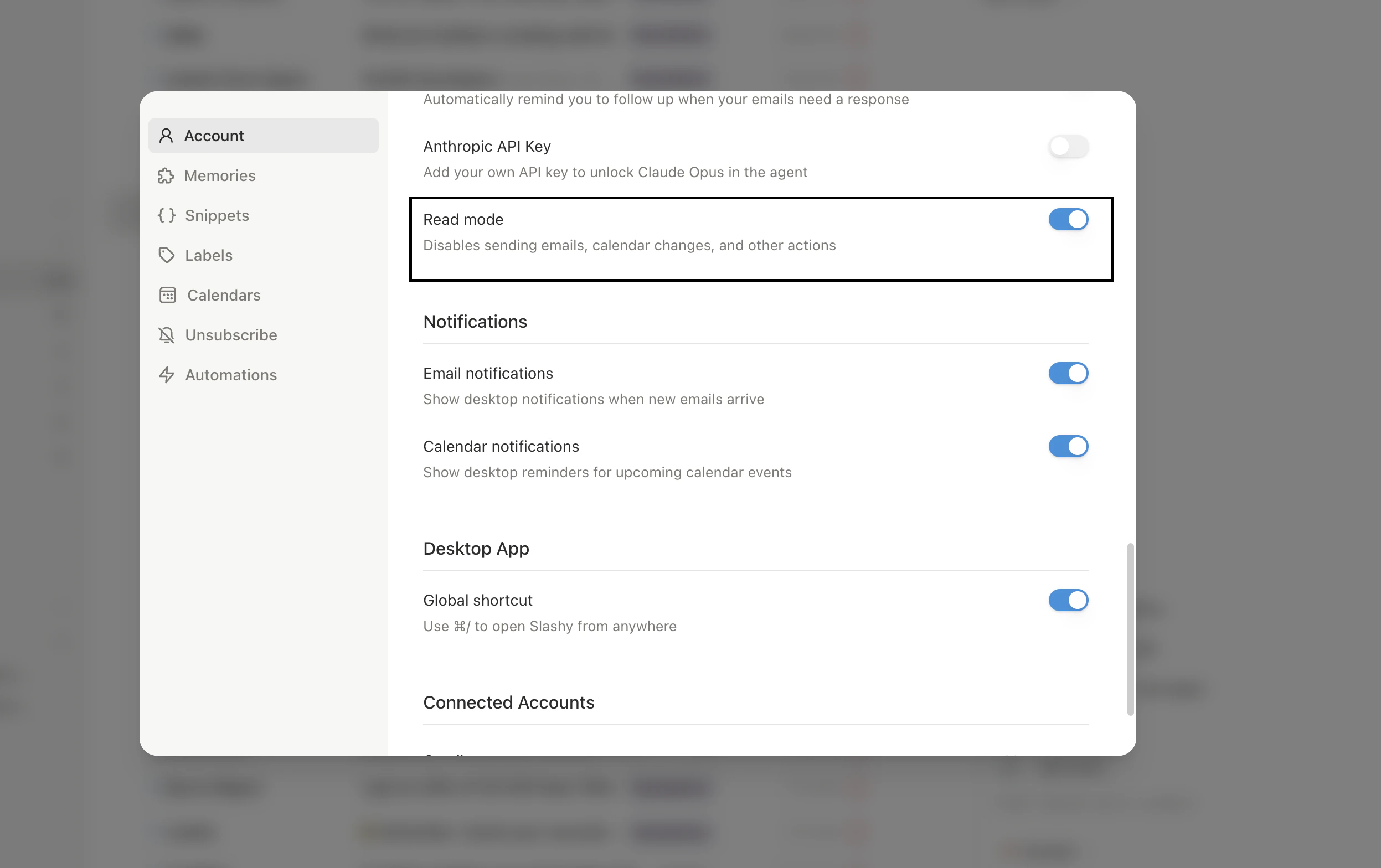
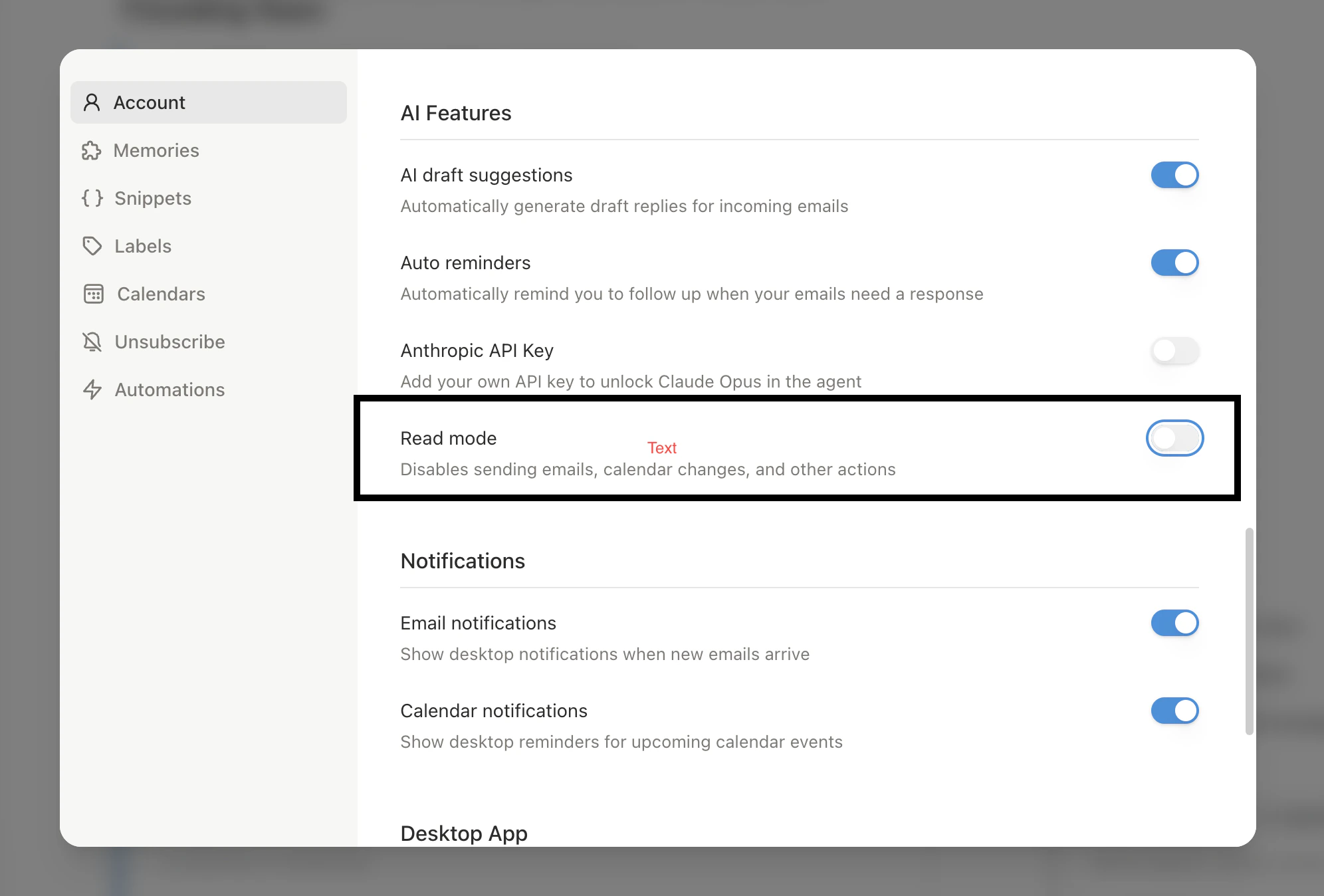
Read Mode is a safety switch that blocks the agent from any irreversible action. Turn it on when you want the agent's research and drafting help without the risk of it sending emails, modifying calendar events, or organizing your inbox.
**Where to find it:** Settings → Account, or toggle it from the agent sidebar controls.
## Read Mode
Read Mode is a safety switch that blocks the agent from any irreversible action. Turn it on when you want the agent's research and drafting help without the risk of it sending emails, modifying calendar events, or organizing your inbox.
**Where to find it:** Settings → Account, or toggle it from the agent sidebar controls.
 * Search and read emails and threads
* Search and view calendar events
* Search the web and research contacts
* Draft emails for your review (not send)
* Answer questions about your inbox
* Sending any email
* Creating, updating, or deleting calendar events
* Archiving, labeling, trashing, or starring emails
* Creating or modifying automations or memories
Action-taking automations pause while Read Mode is on. Read-only automations (search, summarize, notify you) continue running.
Read Mode is the right setting when you are onboarding and want to learn what Slashy can do before granting full autonomy. You can flip it off at any time.
## Cancelling the Agent
Click the **Stop** button in the sidebar while the agent is working. Cancellation is instant -- partial drafts and in-progress searches are discarded. The stop signal works across multiple server containers.
## Scheduled Invocations
The agent can schedule itself to run later. When a reminder fires:
Runs automatically with the reminder context (task description you set).
Can search emails, draft messages, check calendar -- all normal tools available.
Email drafts require your review. iMessage notifications to you send directly.
## Dismissing Threads from the Digest
You can tell the agent to permanently stop surfacing a thread in your daily digest. This is stronger than archiving, because the thread will not reappear even if it stays in your inbox.
Say any of these to the agent (in the digest or in chat):
* *"Clear this thread"*
* *"Dismiss this"*
* *"I don't need to action this"*
When you dismiss a thread:
* It stops appearing in future daily digests.
* Any pending reminder on that thread is cancelled.
* The agent treats it as resolved.
If a new reply arrives on the thread, it returns to the digest automatically so you do not miss a live conversation.
## Automatic Memory Extraction
After every conversation, a background process extracts useful memories. A hidden system trigger also runs on incoming emails to capture contact changes, commitments, and schedule updates.
| Type | Examples |
| ---------------- | --------------------------------------------------- |
| **About Me** | Your preferences, rules, commitments |
| **About Entity** | Contact job changes, company news |
| **Todo** | Commitments with due dates from email conversations |
Stale todos (14+ days overdue) are automatically dismissed. Review all memories in **Settings > Memories**.
## Automation-Triggered Actions
When automations invoke the agent, the same rules apply: emails to others are drafted for review, notifications to you (via iMessage) send directly.
***
Chat with the agent and run commands
Automate actions on incoming email
Automate meeting prep and follow-ups
Schedule the agent for future tasks
* Search and read emails and threads
* Search and view calendar events
* Search the web and research contacts
* Draft emails for your review (not send)
* Answer questions about your inbox
* Sending any email
* Creating, updating, or deleting calendar events
* Archiving, labeling, trashing, or starring emails
* Creating or modifying automations or memories
Action-taking automations pause while Read Mode is on. Read-only automations (search, summarize, notify you) continue running.
Read Mode is the right setting when you are onboarding and want to learn what Slashy can do before granting full autonomy. You can flip it off at any time.
## Cancelling the Agent
Click the **Stop** button in the sidebar while the agent is working. Cancellation is instant -- partial drafts and in-progress searches are discarded. The stop signal works across multiple server containers.
## Scheduled Invocations
The agent can schedule itself to run later. When a reminder fires:
Runs automatically with the reminder context (task description you set).
Can search emails, draft messages, check calendar -- all normal tools available.
Email drafts require your review. iMessage notifications to you send directly.
## Dismissing Threads from the Digest
You can tell the agent to permanently stop surfacing a thread in your daily digest. This is stronger than archiving, because the thread will not reappear even if it stays in your inbox.
Say any of these to the agent (in the digest or in chat):
* *"Clear this thread"*
* *"Dismiss this"*
* *"I don't need to action this"*
When you dismiss a thread:
* It stops appearing in future daily digests.
* Any pending reminder on that thread is cancelled.
* The agent treats it as resolved.
If a new reply arrives on the thread, it returns to the digest automatically so you do not miss a live conversation.
## Automatic Memory Extraction
After every conversation, a background process extracts useful memories. A hidden system trigger also runs on incoming emails to capture contact changes, commitments, and schedule updates.
| Type | Examples |
| ---------------- | --------------------------------------------------- |
| **About Me** | Your preferences, rules, commitments |
| **About Entity** | Contact job changes, company news |
| **Todo** | Commitments with due dates from email conversations |
Stale todos (14+ days overdue) are automatically dismissed. Review all memories in **Settings > Memories**.
## Automation-Triggered Actions
When automations invoke the agent, the same rules apply: emails to others are drafted for review, notifications to you (via iMessage) send directly.
***
Chat with the agent and run commands
Automate actions on incoming email
Automate meeting prep and follow-ups
Schedule the agent for future tasks